
In XNAT 1.10.0 and higher, site administrators have the ability to manage which fields show up as displayable columns in your site’s standard search tables for any given datatype. To get started, log in as a site administrator and navigate to Administer > Data Types. From there, click on the “Search Fields” tab.
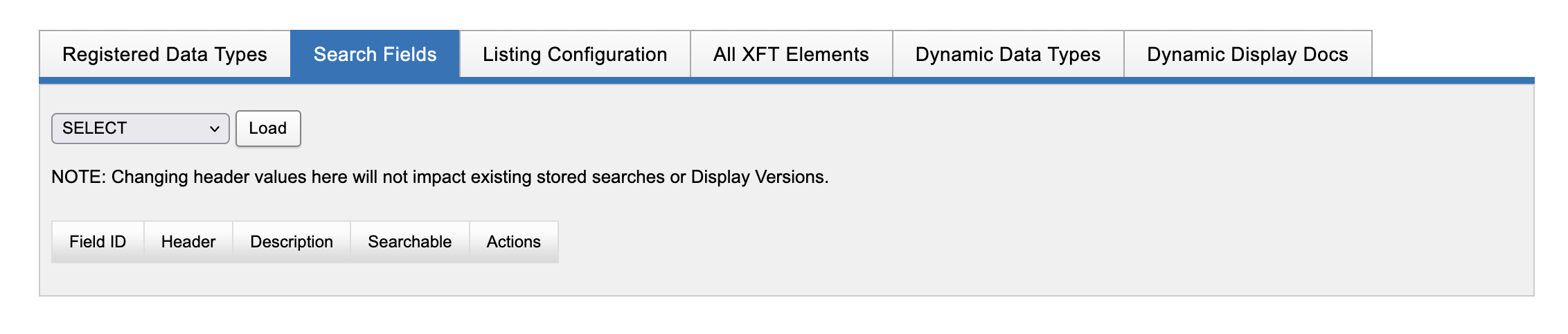
Editing Search Fields for a Datatype
To start working, select a datatype from the Select menu and click “Load”. As an example, we can work on Subjects.
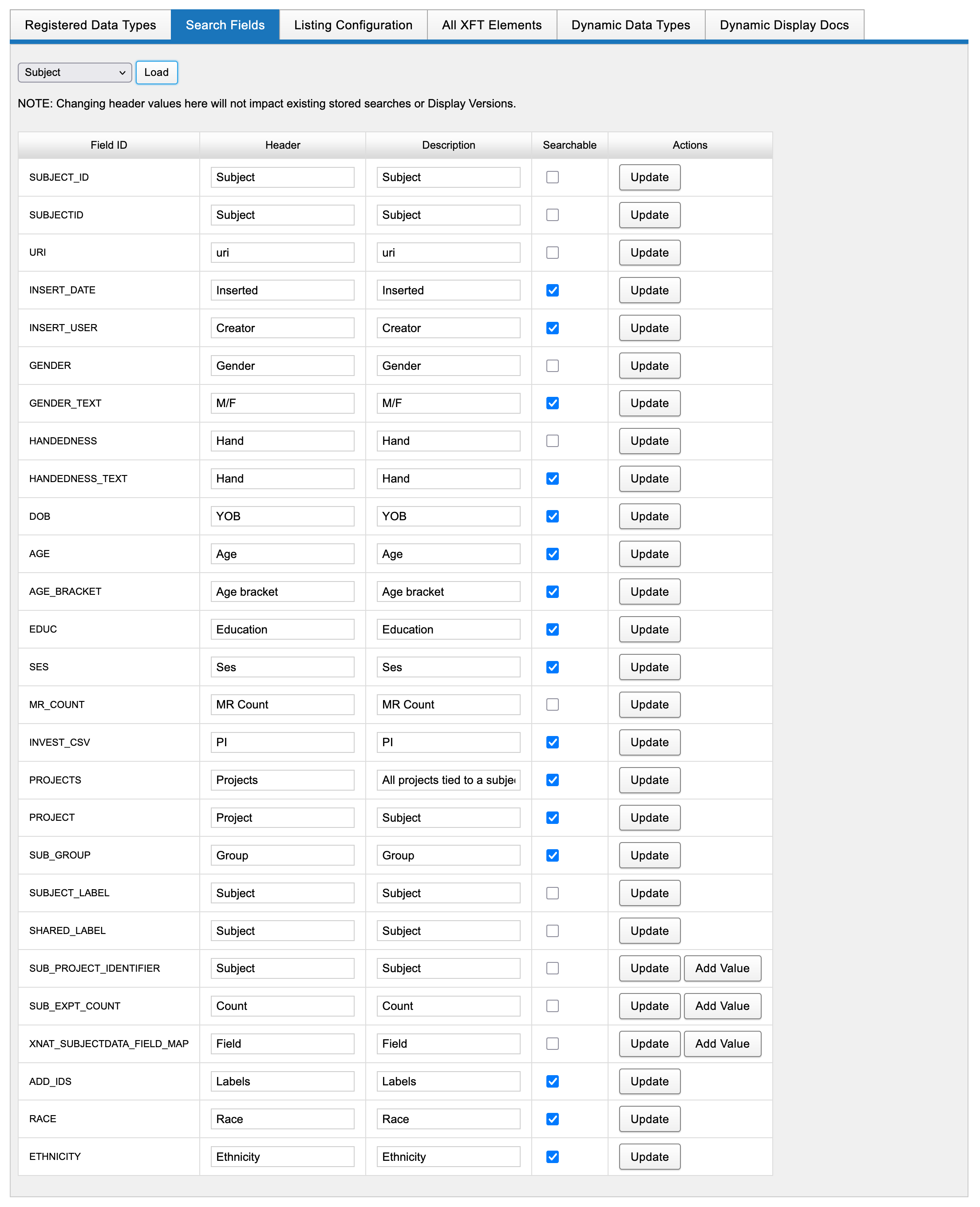
Each row in the table shows a column of data that is associated with this datatype. Every checked item is available to be searched on, whether via the default columns in the search table or the columns visible in the Edit Columns UI for a given search table.
In this listing of search fields, you can set custom labels or descriptions for each column, or use the checkboxes to determine which ones should be shown or hidden from search listings.
There is a current limitation in this functionality that prevents search fields added by custom forms from being manipulated via this administrative UI.
For example, if “Handedness” was deemed to be irrelevant to your site’s research, you could remove it as a searchable field by unchecking the checkbox and clicking the “Update” button in that row.
Troubleshooting
If the Listing configuration hard codes headers for search fields (which the old ones might), then changing the header in Administer > Data Types > Search Fields wouldn't have an immediate effect. Try removing that column via Edit Columns, Submit, then re-add that field, and it should have your updated header.